

operate rung or above, shown as Operator under Settings, then Access. See roles and provenance for the rungs.
With read or contribute, the same page shows the saved text with no editor and no Save instructions button, or “This project has no instructions yet.” To change the text, ask someone with operate to edit it, or ask a project admin for that rung.
Edit and save
- Open the project and press the Guidance tab. It opens on Instructions. The Instructions link in the Guidance panel on Overview goes to the same page.
- Write or change the text in Body.
- Press Save instructions. The page answers “Saved. Existing Tasks keep the old version.” If the text has not changed, it answers “No change to save.”
What a save changes
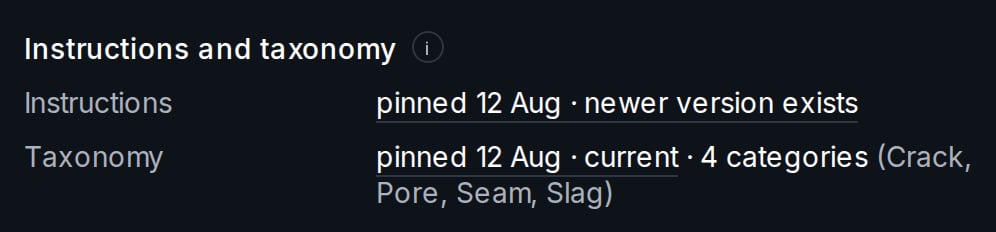
A task keeps the instructions that were current when it was made, so a save never changes what an existing task asks for.- Tasks already made keep their version. In Queue, the task’s brief has an Instructions and taxonomy section, and its Instructions line ends newer version exists. In the editor, Guide shows the earlier text and says “This Task keeps its pinned version.”
- Tasks made after the save use the new version. Their Instructions line ends current.
- Tasks made before the project’s first save have no instructions. Their line reads None pinned, and the editor says “No instructions version was pinned for this Task.”
Read an earlier version
Rows in Version history do not open. You reach an earlier version from a task that uses it:- Open Queue and open the task’s row.
- Press the Instructions line that ends newer version exists. The page shows Version saved with its day, marked Read-only., under a notice that a newer version is current.
- Press Show current to go back to the current version.
If a save is refused
Your draft stays in Body after either refusal.- “Someone else saved while you were editing. Copy your draft before reloading.” Copy your text and reload the page, which now shows the other person’s save. Your browser may ask you to confirm the reload. Put your change back and save again.
- “These instructions are too large to store. Shorten the body, then save again.” Shorten the text and press Save instructions again.
Next step
See how your instructions reach the people doing the work, and how the project’s taxonomy, the other page under Guidance, is versioned.Annotate and review
Follow a task from the queue through the editor to review.
Taxonomy versions
See what each category change does to existing tasks.
| Plans | Team and Enterprise |
|---|---|
| Last verified | 2026-10-31 |