

Which setting you are changing
Give someone access
- Open the project, then Settings, then Access.
- Select Add person.
- On Add a person, choose them in Person or Agent, then choose a level in Access. Someone who is not on the team joins it by invitation first.
-
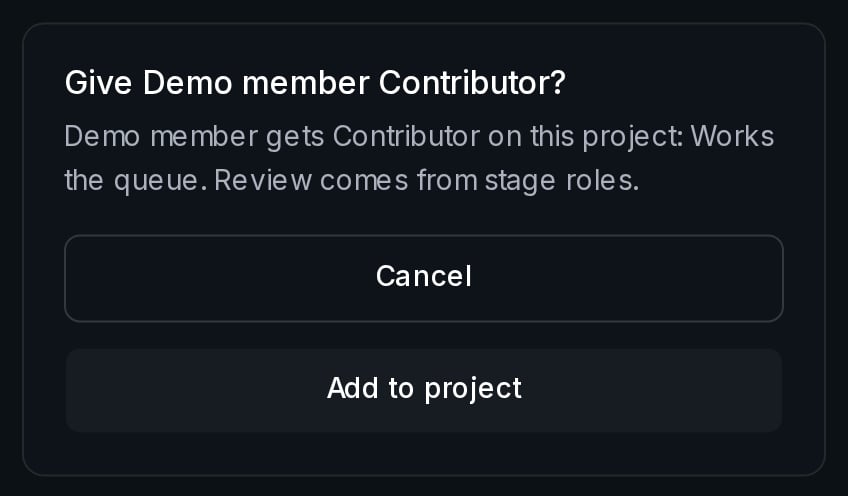
Select Add to project. Viewer is added at once. A higher level asks first, for example Give Demo member Contributor?, and you confirm with Add to project.
- Their grant record opens with the toast Added to project. It lists Access, Stage roles, Qualifications, Can also and Added. A workspace owner or admin also sees Organisation.
- A workspace owner or admin gives stage roles. If the project’s pipeline asks for one, they select it under Stage roles and confirm with Give role. If your workspace role is Member, the record shows the person’s roles as words, or None, with nothing to select. Qualifications and Can also are read-only here. An owner or admin changes them on the person’s member page, which the record links to.
If you cannot give access
Below Project admin, the project has no Settings tab. If you open Access by its address, it shows the four levels and says Only a project admin can see who holds access to this project and change it. There is no Add person, and Add a person says Only a project admin can add people to this project. Someone with no access to the project sees Page not found there. Ask a Project admin on the project, or a workspace owner or admin. To find an owner or admin, open account owners and admins on the Access page.Next step
Learn what each level allows, or start working once you have access.Roles and provenance
See what each project level allows and how it differs from a workspace role.
Annotate and review
Claim a task from the queue, label it and submit it.
| Plans | Team and Enterprise |
|---|---|
| Last verified | 2026-10-31 |